1. Pick a layout for the job
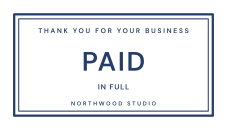
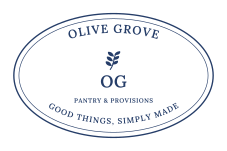
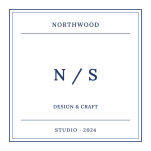
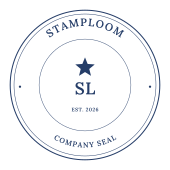
Start with the information you need to show. A company name around initials suits a circle. An address or a status such as RECEIVED benefits from a rectangle. Ovals make room for wider names, and squares keep a monogram compact. Browse the 16 templates and choose the closest structure rather than trying to fit every job into the same shape.
2. Replace the sample text
Edit the main name first, then the supporting lines and detail text. Clear any example date or phrase you do not need. Shorten secondary wording when it competes with the main message. Try the font and letter-spacing controls, and inspect both the center and the outer edges of curved lettering.
The editor supports English, Simplified Chinese and Hindi. Address any unsupported-character warning before checkout. If you need a prepared wordmark in another script, upload it as logo artwork; the lettering in that image will not be editable as text.
3. Choose ink and finish
Every template starts in blue. Pick another named ink or use the custom color control, then compare single and double borders. Add a PNG, JPG or WebP logo if needed; a transparent PNG gives the cleanest separation from the page background.
Leave Aging effect off for a clean mark, or turn it on and adjust the 0–100 strength. The worn areas are transparent. Check that the effect does not erase small letters or thin logo details at your intended size.
4. Set the real-world dimensions
Set the canvas width in millimeters before choosing a download. The displayed dimensions include a small transparent margin. Preview zoom only changes your view; it does not change the file’s print size. For a quick paper check, compare the intended width with a ruler and the available space in your document.
- Confirm every name, date and address.
- Check that the logo and outer lettering remain inside the proof.
- Read the smallest text at a realistic size rather than relying on a large zoom.
5. Export the finished version
Editing and previews are free. A finished transparent 300-DPI PNG costs $2, or PNG, outlined SVG and vector PDF together cost $2.50. Checkout captures the current design; later edits do not change the purchased files. Insert the downloaded image using your document software, or print the PDF at 100% / actual size.
Your working draft is saved in this browser. Sign in to save editable designs to an account library. Keep your order link and the ownership cookies in the purchasing browser so you can reopen guest purchases.
Common questions
Do I need an account to make or buy a stamp?
No account is required to edit, preview or purchase an export. An account is useful for saving editable designs. A guest order still depends on the original browser’s ownership cookies.
Does this use AI to draw the letters?
No. Text and borders are rendered from the editor’s settings. You can edit the wording directly; this workflow does not use GPT Image or generate a new image each time you change a letter.