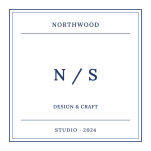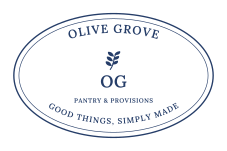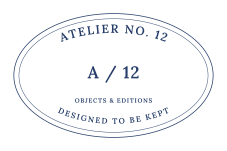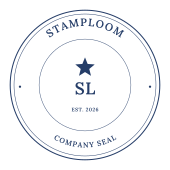
Start with a suitable image
The upload control accepts PNG, JPG and WebP images up to 5 MB. A transparent PNG is usually the most useful starting point because it lets the document show through around the logo. A white or colored background in the source image remains part of the image; the editor does not automatically remove it.
Use a tightly cropped file with enough resolution for the intended logo size. A large empty canvas around a small symbol makes placement harder, while enlarging a tiny source image can reveal blurry edges. The browser prepares and may resize the upload for export, so inspect fine lettering and thin lines in the proof.
Balance the logo with the lettering
Choose a template with space around its center. After uploading, drag the logo in the main preview or use Horizontal position and Vertical position. The Logo size control changes its scale, and Center logo restores its central placement.
Leave a clear gap between the logo, the border and any curved text. A detailed wordmark often needs less surrounding wording than a simple symbol. If the logo already contains the full business name, consider using the outer text for a location or short description instead of repeating the name.
- Check the outline of the logo against both light and transparent preview surfaces.
- Look for leftover white rectangles or excess padding from the source image.
- Review the small text at the intended print size before buying.
Understand color and worn-ink behavior
The ink buttons change the editor’s lettering and borders, not the uploaded logo’s colors. For a one-color logo stamp, prepare a source image in that color before uploading it. Blue is the template default; the editor also provides five other named colors and a custom picker.
Aging effect applies transparent wear to the finished composition, including the logo. It does not turn a photograph or multicolor logo into a single-color rubber-stamp drawing. A modest strength usually leaves more of a detailed brand mark intact.
Know what stays vector and what stays raster
Stamp lettering and borders export as outlined vector artwork in SVG and PDF. Your uploaded logo remains an embedded raster image; buying the all-formats option does not automatically trace or vectorize it. Its sharpness still depends on the source image and how large you print it.
Choose transparent PNG for design mockups and presentations, or PNG, SVG and PDF together when you also need vector stamp lettering and a print-size page. The purchased files use the logo and settings captured at checkout.
Common questions
Can I upload an SVG logo?
The upload control accepts PNG, JPG and WebP, not SVG. Export a suitable raster copy from your design software first. The stamp’s SVG download format is separate from the accepted logo upload formats.
Can a logo contain lettering the editor font does not support?
Yes. Lettering already included in your image can remain visible as part of that image. It will not become editable text, and it retains the resolution limits of the uploaded artwork.